


As technology continues to developWireless networkIt has become an integral part of our daily lives. Sometimes we may wish to share computer network connections with mobile phones or other devices so that the internet can also be travelled without an independent wifi network. This paper will describe in detail how to achieve this goal, regardless of what you useLaptopStillDesktopsI don't know。
I. Computer sharing wifi
For laptop users, sharing wifi for mobile phones is relatively simple, as most modern laptops have built-in wifi cards. Following the example of windows 10 and windows 11 systems, specific operational steps are described:
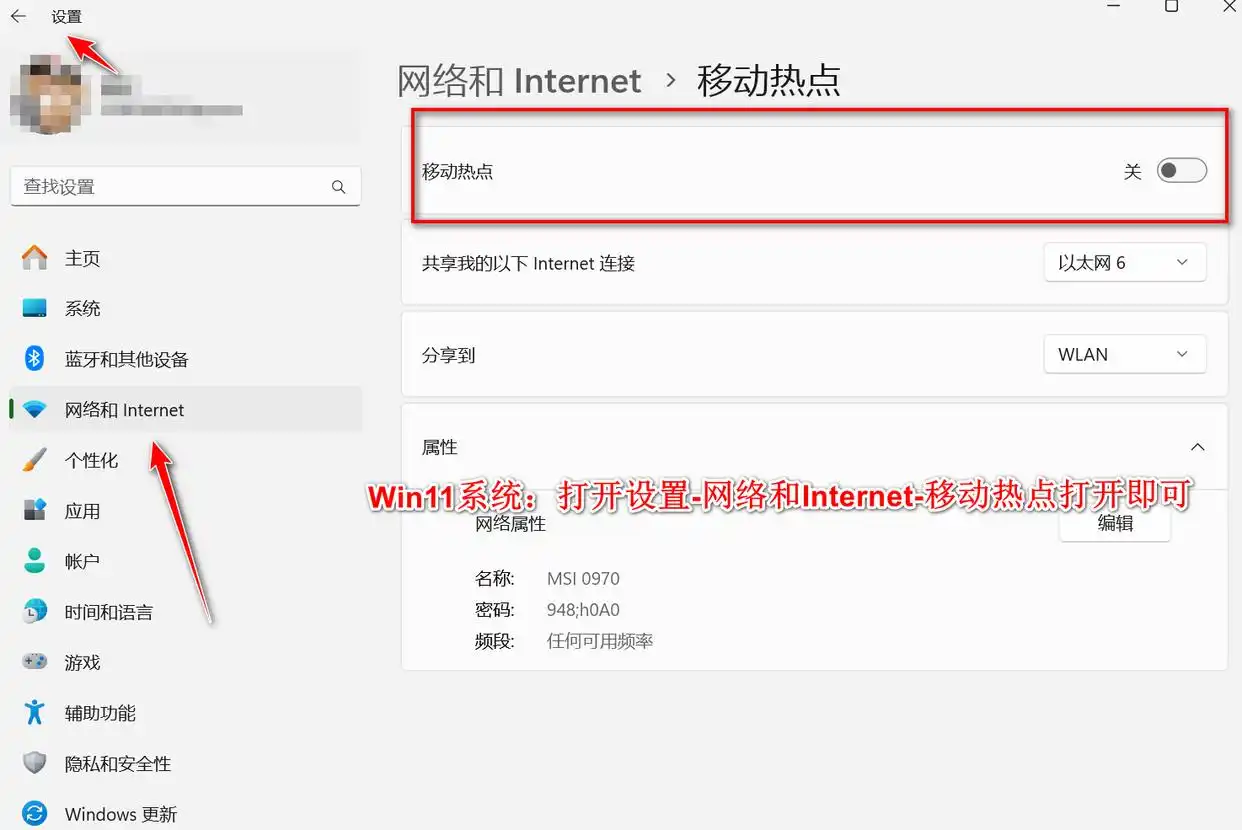
Opens the computer settings: first, click the " start " button at the bottom left corner of the computer screen, and then select the " set " icon (usually a geared icon)。
Enter the network and internet settings: in the settings menu, find and click the network and internet options. This will take you to the network settings interface。
Enables mobile hotspots: select the mobile hotspot option in the network and internet settings interface. Here you can see a switch button to enable or disable moving hotspots. Click the switch button to enable moving hotspots。
Configure hotspot settings: when moving hotspots are enabled, you can click the edit button to change the name and password of the hotspot. Sets an easy-to-remember name and password according to your needs and ensures that the password is sufficiently secure。
Connect the cell phone to the hotspot: now, the wifi settings that open the cell phone find the computer hotspot name you have just set in the list of available networks. Click the name, and then enter the correct password to connect. Once the connection is successful, your cell phone can access the internet via the laptop network。
Ii. Desktop sharing wifi
For desktop users, sharing wifi for mobile phones is somewhat more complicated, as desktops usually do not have built-in wireless network cards. To achieve this goal, you need to install an external wireless network card for desktops and set up according to steps like laptops。
Buys and installs wireless network cards: first, you need to purchase a wireless network card for desktops. These cards are usually connected to computers via the usb interface. Upon purchase, the wireless network card is inserted into the usb port of the desktop and the necessary driver is installed in accordance with the accompanying instructions。
Enter the network and internet settings: like a laptop, click the " start " button at the bottom left corner of the screen, select the " set " icon, and then enter the " network and internet " settings。
Enables and configures mobile hotspots: in the network and internet settings interface, find and click the mobile hotspot option. Enables mobile hotspot functionality and edits the name and password of the hotspot as required。
Connect your cell phone to the hotspot: finally, open your phone's wifi settings and find your computer hotspot name in the list of available networks. Enter the password and connect to the hot spot. Once the connection is successful, your cell phone can access the internet via the desktop network。
What needs to be noted is sharing wifiCellular accessThis may increase the network burden on computers and may reduce the overall network speed. In addition, when using a public or untrustworthy network, be careful to protect your privacy and safety. Avoiding the transmission of sensitive information or significant online transactions on these networks。
In any case, regardless of whether you use a laptop or a desktop, it is easy to share the computer's network connection with the internet, provided you have the right methods and steps. I hope this will help you


