

Introduction: the printer maintenance technical manual provides readers with in-depth guidance to understand and address printer issues. From basic to advanced technology, the manual covers such areas as failure diagnosis, error code resolution, routine maintenance, failure clearance, dismantling and assembly, hardware replacement and software failure management, ensuring that it professionals and fans have full access to all aspects of printer maintenance, thereby resolving printer problems quickly and efficiently。

1. Printer structure and rationale
Printers have become indispensable equipment for offices in the digital age. In order to better utilize and maintain printers, it is essential to understand their internal structure and working principles. This section describes the printer infrastructure, its core components and their workflow。
Core components of printers
The printer consists mainly of the following core components:
Rationale
The printer workflow can be summarized as follows:
Data processing: print data transmitted through computers or other devices to printers. Print command: control the system to interpret the data and convert it to an actionable print command. Ink/carbon transfer: print head by line on paper, point-by-point ink spray or reprint carbon powder according to the instruction. Paper moves: the feed system and the moving system collaborate so that the paper moves according to the intended path during the printing process. Output: ink or carbon powder is fixed on paper by heating or co-pressure to form the final print output。
Understanding these components and processes will help users to conduct more accurate troubleshooting and maintenance when they encounter printing problems. The next section will explore in depth the type of printer failure and its diagnostic methods。
2. 1 common printer failure type 2. 1. 1 hardware failure analysis
In the modern office environment, printer hardware failure is a frequent problem, including, but not limited to, the inability of printers to identify cartridges, cardboard, printer failure, etc. Hardware failure analysis requires, first of all, an understanding of the basic structure of the printer, including components such as headprints, paper feeders, sensors and movers. When a printer suffers from a hardware failure, a preliminary diagnosis can normally be made by:
Checks whether printer power and data lines are connected correctly and stable. Identify if the printer has a wrong light on and what it means. Check for cardboard and remove the stuck paper or alien as instructed in the printer's instructions. Checks whether the cartridge or selenium drum is installed correctly or needs replacement. Observe the smoothness of the printer's feeder。
Through the above steps, we can reduce the range of failures, determine which parts of the hardware are problematic and take appropriate measures to address them. If the problem remains unresolved, professional maintenance services may be required。
2. 1. 2 software failure diagnosis
Software failure diagnosis usually involves printer-driven, operating system compatibility, printing queues, etc. The following are common steps for some of the diagnostic software failures:
Check if the printer driver is the latest version or try to re-install the driver. Confirms whether the printer is correctly identified by the operating system and the correct printing driver has been installed. Checks if print jobs accumulate in the print queue, and if so, emptys the print queue and retransmits the print jobs. If the printer is connected through the network, check the network settings to ensure that the printer's ip address or shared settings are not problematic. In some cases, restarting computers and printers can resolve temporary software conflicts. 2. 2 the thinking and method of trouble-shooting 2. 2. 1 systematic trouble-shooting steps
In the face of printer failure, a systematic troubleshooting process can improve the efficiency of problem resolution. The following are generally followed procedures for trouble-shooting:
Identification of problems - identify specific problems with printers, such as unprintability, poor printing quality, inability to connect to networks, etc. View the error information - there is usually an error code or hint on the printer to make a preliminary failure determination based on the error information. View the printer status - check the printer's display screen or status indicator to understand the printer's current status. Check hardware - check against the previously mentioned hardware failure analysis step. Checks software settings - checks printer drives, print queues, network settings, etc. Test-run diagnostic program - if the printer brings a diagnostic tool, try to run to get problem reports. View help documents - view printer user manuals or online help documents that may contain useful troubleshooting information. Contact with manufacturers or technical support - if the above steps do not solve the problem, it is wise to contact the technical support of printers. 2. 2. 2 common tools and test methods
To more effectively diagnose and repair printer problems, we can use a number of commonly used tools and test methods:
2. 3 practical operation of repair technology 2. 3. 1 hardware replacement techniques
Hardware replacement is a common means of resolving hardware failures. The following are general steps in hardware replacement to replace inkjet printers:
Shut down the printer and remove the power lines to ensure that the printer is out of power. Opens the printer's lid and finds the correct location of the cartridge. Lightly remove old cartridges and be careful not to touch circuit boards or print heads. New cartridges are removed, normally a protection device is provided by the chamber of commerce to prevent ink leaks and do not touch the printhead on the cartridge before removing the protection. Puts the new cartridge gently in place to ensure that the installation is correct. Close the printer lid, reconnect the power and turn the printer on. Checks whether the new cartridge is working properly by printing a test page. 2. 3. 2 software set-up adjustments and optimization
Software set-up adjustments are essential to optimize printer performance. The following are some basic software set-up adjustments:
Check printer properties: in the operating system, find printer properties, check if the driver needs to be updated, adjust the print quality settings, etc. Manage print queues: make sure there are no error jobs in the print queue, and if yes, delete or suspend printing jobs. Network configuration: if a printer is connected to the network, ensure that the network is set correctly, such as ip address, subnet mask, gateway, etc. Update solid: find printer solids on the printer manufacturer 's official website, download them and install them as instructed. System resource management: ensure that computers have sufficient resources to allocate to printers, e. G. In some operating systems, memory allocations can be set in printer properties。
The following sections will continue to explore in depth the error codes and solutions, routine maintenance and cleaning methods, as well as fail-check techniques and hardware software maintenance。
3. Error codes and solutions
In the course of the printer's work, users often encounter the emergence of wrong codes. These codes usually indicate specific problems with printers and provide users with clues to solve them. For different types of printers, error codes may vary slightly, but they are usually handled and resolved with some commonality。
3. 1 interpretation of the wrong code 3. 1. 1 meaning of the code and possible reasons
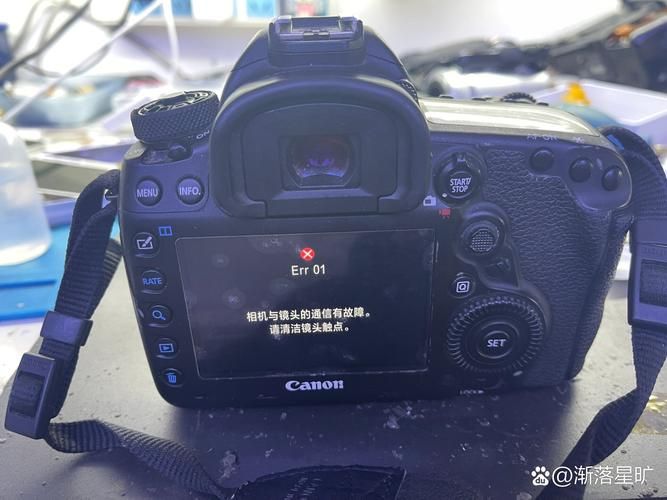
The error code is usually a set of numbers or letters, and each printer model has its own error code table. For example, the hewlett-packard printer may display a "0xc19a0001" error, which may refer to an inkbox problem, while the "5100" error of the energy printer may mean a failure of communication between the printer and the computer. An accurate understanding and resolution of the problem represented by the wrong codes requires an understanding of their meaning。
3. 1. 2 analysis of the relevance of wrong codes and failures
The error code is an important basis for a failure diagnosis. By analysing the wrong code, we can relate to specific hardware or software failure points. For example, the error code “e-51” in the canon printer indicates that the printing head is blocked, which will need to be addressed through a cleaning programme. Error codes usually correspond to specific printer states, such as cardcards, cartridge problems, printer connection problems, etc。
3. 2 resolving printer problems by wrong code 3. 2. 1 targeted thinking
The first step in resolving the error code for printers is to identify and understand the wrong code. Once the meaning of the wrong code has been determined, we can develop targeted solutions based on the cause of the problem. For example, printer paper, we need to gradually remove the stuck paper in accordance with printer instructions. In case of ink cartridges or carbon powder, the corresponding materials may need to be replaced。
3. 2. 2 practical case resolution
In the case of the “e-51” error, the practical steps to address the problem are described here:
Print head cleaning: first, use the printer's built-in cleaning function, usually using the " print head cleaning " option on the printer's control panel。
Print header cleaning process:
1. Open printer power. 2. Access to printer control panels. Select the maintenance or tools menu. Select the " print head clean " or similar option. 5. Operation with screen tips。
Manual cleaning: if automated cleaning does not solve the problem, it may be necessary to manually clean a print head. This usually involves the removal of a printhead and the use of pure water or special cleaning fluids for light cleaning。
Check cartridges: make sure they are installed correctly and have sufficient ink. If the inkbox problem persists, changing the inkbox is a common method of solving such problems。
Through the above steps, users can address the issue of error code instructions for printers in a targeted manner. It is important to note that solutions and steps may differ for different wrong codes. Therefore, when handling the error code for printers, reference should always be made to the corresponding user manual or technical support to contact printer manufacturers。
4. Daily maintenance and cleaning methods 4. 1 daily maintenance of printers 4. 1. 1 importance of cleaning and maintenance
The daily cleaning and maintenance of printers, as sophisticated office equipment, is essential to ensure the steady operation of the equipment, extend its useful life, improve the quality of printing and avoid potential malfunctions. The long-term use of printers, especially in larger dust environments, can easily lead to paper card paper, ink and carbon-powder jams, and accelerated wear of components. Regular cleaning and maintenance work is therefore an indispensable responsibility of every printer user。
In-house regular cleaning of printers can effectively prevent malfunctions caused by accumulation of ink or paper chips. In addition, for laser printers, regular clean-up would prevent carbon powder from leaking to circuit boards leading to short circuits, and for inkjet printers would avoid ink-drying of the printing head. At the same time, the correct maintenance of printers also allows consistency in the quality of printing and avoids printing quality problems caused by head plugs, such as colour distortion, blurring of lines, etc。
4. 1. 2 maintenance cycle and attention
The frequency and working environment of printers can be used to determine maintenance cycles. For frequently used printers, it is recommended that rapid cleaning be carried out every week and that full cleaning and maintenance be carried out every month. Comprehensive cleaning and maintenance work is performed at least quarterly for printers that are not frequently used。
In carrying out maintenance, the following should be noted:
Ensure that cleaning and maintenance is performed in a state of power shutdown and outage to avoid damage to printers or personal injury. Select the appropriate time to perform cleaning and maintenance work and to avoid interruptions when urgent printing of documents is required. Use the right tools and cleaning agents to avoid the use of substances that may cause damage to printers, such as cleaning agents containing alcohol or strong solvents. When cleaning internal parts of printers, they should be operated lightly to prevent damage to sensitive components. A careful reading of the maintenance guide in the printer's instructions may require different types of printer and brands. Recording maintenance and cleaning logs facilitate tracking and comparison of maintenance effects at different points of time. 4. 2 steps and techniques for cleaning printers 4. 2. 1 external cleaning methods
The external cleaning of the printer is relatively simple, but it needs to be positioned to ensure that the machine works well. The following are some basic external clean-up steps:
Clean the shell of the printer using a moist cloth and be careful not to allow liquids to penetrate inside the printer. Clean up the printer's entry and exits to prevent piles of paper scrap. For panels with scratches or stains, specific cleaning agents can be used for processing. Maintain air flow around printers to avoid dust accumulation around machines. 4. 2. 2 internal cleaning and maintenance
Internal cleaning requires more careful operation than outside, and the wrong method of cleaning may cause damage to printers. The following are some of the techniques for internal cleaning:
Clean printing pages with printers: many printers are equipped with clean printing pages or clean printing functions that can be used to clean headers and delivery systems。
Cleaning of paper channels: scrutinizing paper scraps and dust in paper channels with clean soft brushes, and then blowing out the remaining particles with compressed air。
(c) maintenance of paper feeders: check if there are shredded or glued paper chips in the penthouse, wipe them light with waterless alcohol, and ensure that the flow of paper is normal。
Cleaning and replacing cartridges or carbon cartridges: when the cartridges or carbon cartridges are near exhaustion, they should be replaced in a timely manner, while cleaning the ink cartridges and carbon cartridge interfaces to avoid leakage of ink or carbon powder。
Check and maintain the header: if the printer supports the header cleaning function, you can use it to clear the plug. If this is not supported, the header will need to be manually cleaned as guided by the printer's instructions。
Maintenance of printer power and connection lines: periodic inspection of power lines, usb cables and data lines to ensure good exposure and no damage。
In cleaning printers, reference is always made to the printer user manual, as different printer models may have different cleaning requirements and steps. Maintaining good maintenance habits not only improves printing efficiency but also ensures print quality and avoids additional maintenance costs resulting from improper maintenance。
5. Fault screening techniques and hardware software maintenance
In the day-to-day use of printers, failure screening and maintenance is an important element in ensuring the proper operation of printers. This chapter will provide information on the techniques for troubleshooting and maintenance methods for hardware and software。
5. 1 fault screening technique 5. 1. 1 diagnosis using test pages
Printing the test page is a common method for quickly checking the printer status. Different printer models may operate differently, but the general steps are as follows:
Opens the printer power and ensures that the printer contains paper. Enter the printer's control panel or print management functionality for computers connected to the printer. Select the print test page or print self-check page options. Analyses the printout of the test pages to check if the text and graphics are defective, such as missing colours, broken wires, fuzzies, etc。
If the printout of the test page is abnormal, the possible problem can be judged by the printed pattern. Horizontal stripes, for example, may be head-stamping, while vertical stripes may be paper problems。
5. 1. 2 check connections and ports
When printing is not working, all connections, including power lines, usb connections and network connections, should be checked first. At the same time, confirm that the printer port is set correctly, as follows:
Checks the robustness of the data links between printers and computers. Confirms that the computer port settings (e. G. Com, usb) are not occupied by other software. Try to replace different ports for testing. In the case of network printers, check network connectivity and ensure that there is smooth communication between printers and networks. 5. 1. 3 steps and attention for updating the driver
Drivers are key software for printers to correctly perform their tasks, and obsolete or damaged drivers lead to multiple printing problems. The steps to update the driver are usually as follows:
Visit the website of the printer manufacturer. Finds the printer type and the latest driver on the support or download page. Download and install the driver. Re-launch computers and printers to ensure that the new driver is effective。
Note:
5. 2 hardware dismantling and assembly curricula 5. 2. 1 dismantling steps and safety guidelines
The following safety guidelines must be followed before the hardware is dismantled:
Dismantling procedures typically include:
Removes printer panels and displays internal structures. Dismantling the screws of the fixed parts in sequence. Recording and sorting of each removed component and its location. 5. 2. 2 assembly processes and techniques
Printers are assembled in reverse order of disassembly, with key points including:
5. 3 software failure management 5. 3. 1 driver process resolution
If a printer has software problems, such as the inability to start printing tasks, the driver should first be checked:
Confirms that the printer driver is correctly installed on the computer. Check the printer's status in the device manager to ensure that there are no abnormal marks. Try to unmount and re-install the driver. 5. 3. 2 printer settings and network connection failure management
The following steps should be followed in handling printer settings and network connections:
Determines whether the printer settings match current printing requirements, such as paper size, colour patterns, etc. For network printers, check network connectivity settings to ensure that printers are in the same network environment as the network. Network connectivity is checked using a network diagnostic tool with printers。
After the above questions have been addressed, try again the print job. If the problem remains, a more in-depth examination of printer settings or network-related configurations may be required。
Introduction: the printer maintenance technical manual provides readers with in-depth guidance to understand and address printer issues. From basic to advanced technology, the manual covers such areas as failure diagnosis, error code resolution, routine maintenance, failure clearance, dismantling and assembly, hardware replacement and software failure management, ensuring that it professionals and fans have full access to all aspects of printer maintenance, thereby resolving printer problems quickly and efficiently。