

How do we clean up the computer drive? Zero basic step-by-step clean-up of the curriculum and complete release of space
I. Understand: why is drive c full
Dismantling map of c-disposal sources
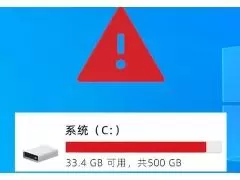
Many computers have problems with c-discretion red, lack of space, bullet window hints of “lack of disk space”, computer cartons, software failure, system failure, and the first reaction is to search for how to clean up the c-disc. However, freshman cleaning is the easiest way to step on the pits: the blundering of system files leads to blue screens, the collapse of the system and the failure of software to start。
The c disk space was occupied, mainly from four main categories: the first is windows file, updated cache, dormant file, system restoration point, which is a system file, cannot be removed directly and can only be safely cleared through official tools; the second is the software installation package, running cache, chat record, video cache, which is the largest part of the space occupied and the central focus of clean-up; the third is the user's personal file, desktop file, document, picture, download content, many default c discs, which accumulates more and more; and the fourth is the recycling site, temporary file, log file, which is a trash file that can be cleaned directly。
Core principles for the clean-up of the c-disk: system files are cleared with official tools, personal files are prioritized, software caches are targeted for deletion and strange files are never deleted. This paper begins with the simplest system with its own tools, moving gradually to depth clean-up, space transfer, daily maintenance, safety without risk for the entire journey, and zero-basic beginners working with them to fully address the c-card space deficit。
Ii. How to clean up the computer c-disk
Windows disk cleaning tool interface
The first step in cleaning up the c-disk is to give priority to the "disk-cleaning" tool that windows officially carries, which is completely free of charge, safe and non-toxic, and does not miss system files, suitable for all starters, and which will remove the vast majority of system garbage。
Specific operational steps:
Open this computer, right click on drive c, select attributes, click disk cleaning in the popup window
The system automatically scans files that can be cleaned from the c-disk, pending completion of the scan
Check the following security options in the list of " files to delete " : temporary files, wastebins, thumbnails, system error memory dump files, windows update cleanup, download, log files
After confirming that the check is correct, click ok and select delete file, pending cleanup。
In the case of long-term clean-up computers, this step could release a few to a dozen gb spaces. The "windows update cleanup" is the largest space, with the system being updated to retain the old version of the backup file, and long-term failure to clean can take up more than a dozen gb space, with the assurance that cleaning will not affect the system's proper functioning。
Step-by-step operations: click on the "clean system file" below the window and re-scanning it, and also clean up the old system back-up, update the residue, defense program cache and release more space。
How to clean up the computercdisk. Deep cleaning system cache
A map of the location of the large core files of the system
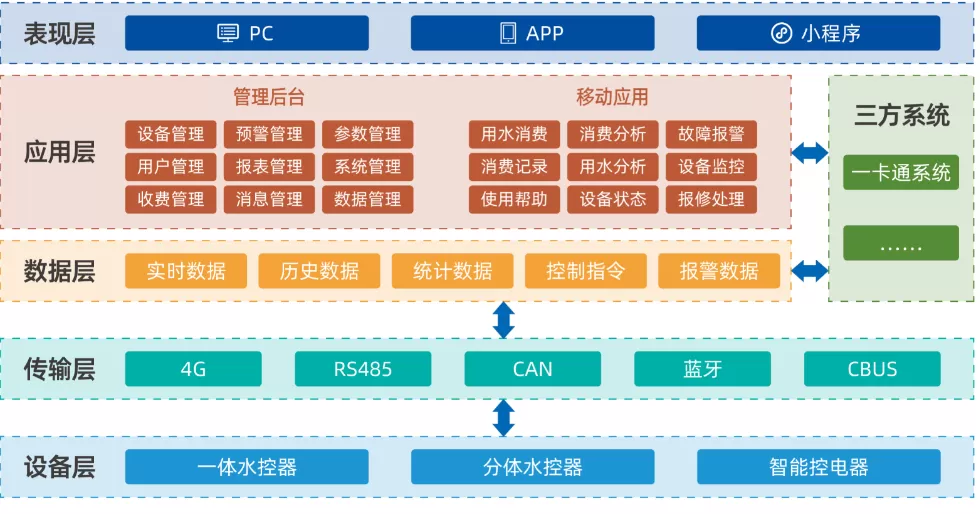
Following the completion of the basic clean-up, several systems hide large documents, occupy huge space and can be safely cleared through official orders, and are at the heart of the incremental clean-up。
1. Close sleeping files, release as much space as memory
The windows hiberfil. Ss file on drive c saves all the data in memory. The file size corresponds to the size of the computer running memory. The 16g memory occupies 16g space and the 32g memory occupies 32g, one of the largest single files on drive c。
If you do not normally use hibernation, you just have to turn off the machine, sleep and be safe. Method of operation: press win+r, enter cmd, open the command hint as administrator, enter the command powercfg-h off, press back to the vehicle, the dormant file is automatically deleted, and space is released immediately。
Follow-up needs to return to hibernation and enter powercfg-h on to recover, flexible and manageable。
2 cleaning up the storage of winsxs components, secure thin system files check
The winsxs folder, which is the windows component library, contains the core document of the system, and many people look large and want to remove it manually, which is absolutely forbidden, and the error in the deletion directly leads to a system collapse. The correct method of clean-up is to carry a system command:
Admin identity open command hint, enter dism /oNline /cleanup-image /startcompoThe system automatically clears obsolete and redundant system components, is safe and normally clears 2-5gb space。
3. Remove temporary folder cache
Press win+r, enter %temp% back, open the system temporary folders, which are all temporary files generated by software running, and delete them all, and skip if you have a hint that the file is in use, without affecting the system running。
Iv. How to clean up the computercdisk, transfer personal files and software
Other organiser
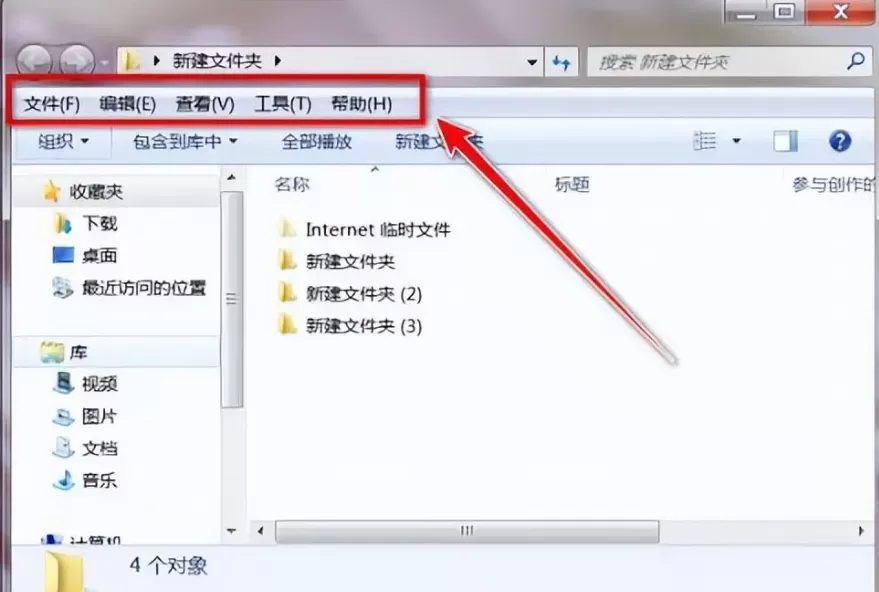
The reason many people use c drives more and more is not the amount of garbage, but the fact that all files and software are installed on c discs by default. The clean-up is merely a cure, and the transfer document is the cure and the one-time set-up becomes permanent。
1. Transfer desktop, document, download, graphic default file check
The system defaults that desktops, documents, downloads, images are all on c-disk, with micro-credit received files, downloads of installation packages, desktop files, all of which occupy c-disc space. Transfer methods:
Open "this computer" enters the c drive opens the "user" folder opens its own username folder
Found desktop download " document " photo " folder with right-click " properties " to switch to the location tab
Click " move " , select a new corresponding folder for a d-disk or other disk, click " apply " ok, and the file will automatically move over。
Once the migration is complete, the files that are saved to the desktop and downloaded will be automatically stored on other disks and will no longer occupy the c-card space。
2. Migration and reloading of installed software
Large software, games, small amounts of gb, already installed on a c-disk, is a large space house. Do not recommend manually cutting folders, which will render the software unstartable。
Formal method: small software is directly offloaded and re-installed with the option of installing a d-disk; large software, games can be safely transferred using formal software migration tools to avoid reloading problems。
When you install the software on a daily basis, you must change the default habits for the next step, manually modify the installation path to the other disks, and avoid filling the c disc from the source。
V. How to clean up computer c-disc-cleaning micro-mails, qqq, browser caches, and clean-up space
Wireless storage space cleanup interface map
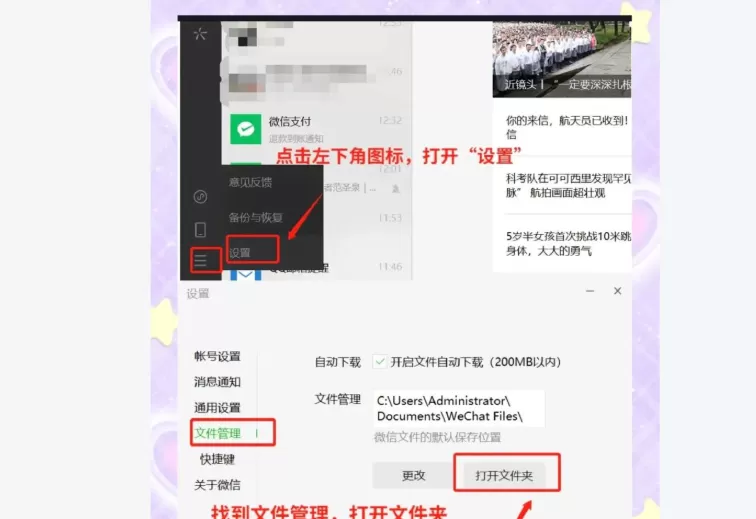
Now, the biggest space killer on the computer c drive is the chat software like wesson, qq, business weaver. Photos, videos, documents, facebags received in chats are accumulated over the years, taking up dozens of gbs is very common, and many people do not even know that these documents exist on board c。
Microcache cleanup
"setting" on the lower left corner, "process management" is the most important tool for the management of documents
See storage space occupancy first and click on "managing storage space" until the scan is completed
Selectively, you can delete chat pictures, videos, files, keep important documents, or clean up cache files without affecting chat records。
At the same time, it is suggested that the "file default location" be moved to a d-disk so that the c-disposals will no longer be occupied。
Qqq, enterprise wireless
Operating logic and micro-trust are consistent, and storage space, file management, the cleanup of caches and useless files are found in the settings, and the default save path is modified。
Browser cache cleanup
Browser long-lived, cache, cLookie, downloading records will take up a lot of space. Open browser settings, find privacy and security, clear browse data, tick cache files, cLookie, regular clean-up can release space and increase the speed of browser operations。
Vi. How to clean up the computer c-disk grade optimization: shut down the system and adjust virtual memory
System protection and virtual memory settings interface
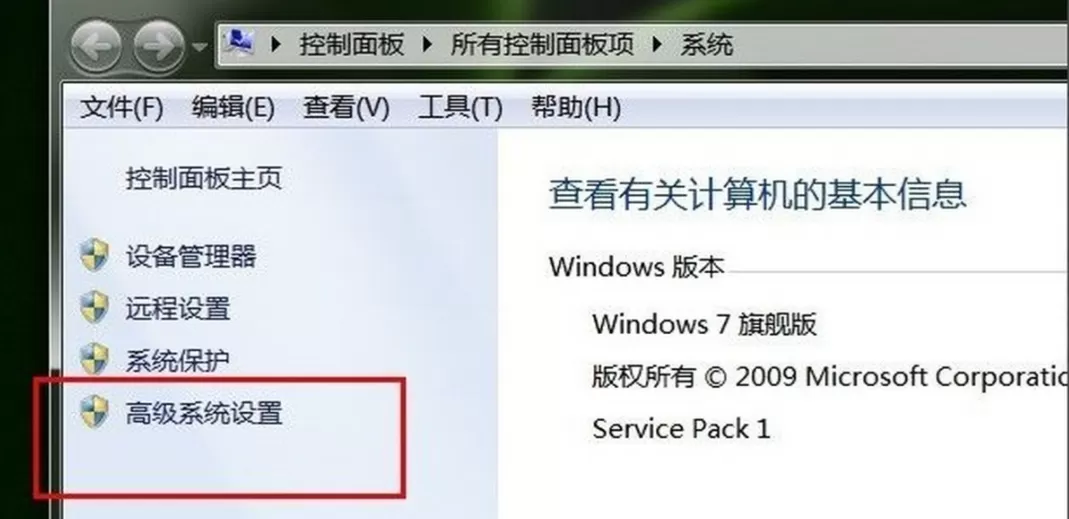
Following the completion of the first few steps, there are two more system settings that can be optimized and further release the c-disc space suitable for a certain base user operation。
1 management systems reverted to their original location
The system is back-up at the back-up point, taking up a large amount of c-disk space and increasing the accumulation of chronic unmanageable space. Method of operation:
Right-click on "this computer" and "intangibles" and "system protection"
The maximum-use space ratio could be adjusted or all reduction points could be deleted and only the latest one retained. Full system protection is not recommended for closure, space is reserved for system backup and problems can be quickly recovered。
2. Rational adjustment of virtual memory
Virtual memory is used in drawing a portion of the space on disk c for memory, which is managed by the system by default and is growing in volume. If the computer has more than 16g, daily office entertainment can appropriately reduce the virtual memory or move it to another disk。
Operating path: this computer right-click property high-level system settings high-level performance settings high-level virtual memory changes
Cancels "auto-manages the page break file size of all drives", sets the size of the system to the c disk, or moves to the d disk, and restarts the computer when the settings are complete。
Note: computers with 8g and below are not recommended to close virtual memory, otherwise software collapse is a problem。
Vii. Clearing mined areas that cannot be touched
C-risk high risk folder alarm
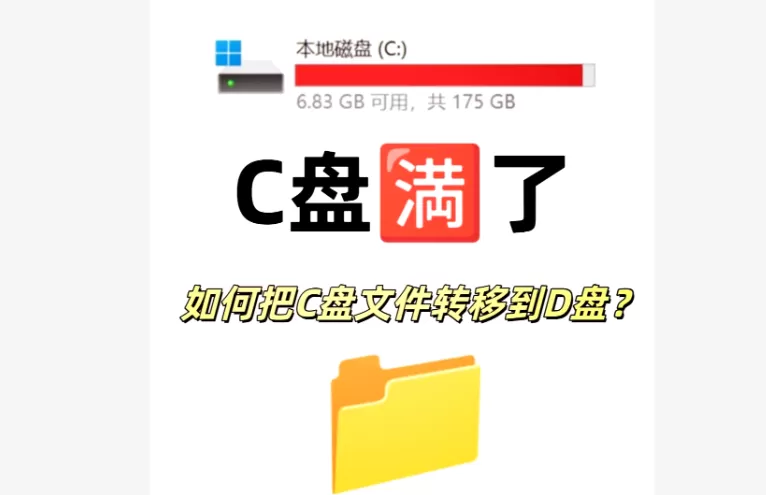
Every year, many people clean up c-discretion files, leading to a breakdown of the system and the loss of data。
First, the "windows" "program files" "program files (x86)" "system32" folder on drive c should never be deleted, all of which are system core documents and the system cannot be activated directly after deletion。
Second, do not simply delete documents with the words "system" or "config" or, if you look at space, do not remove them manually and clean them with official tools。
Third, the one-key clean-up of garbage bat, a one-key, lean c-discs script that is circulated on the internet, many of the scripts are not properly prepared, leading to errors in system files, registration forms, errors in light software and system collapse。
Fourth, the use of unknown pheasant cleaning software should not be used, and many of the software is strapped and mounted, and the more computers are cleaned, the more privacy is disclosed. Priority is given to self-loading tools for systems, and third-party tools are used to select formal software that is well-established。
Viii. How to clean up the computer disk - day-to-day maintenance techniques
Windows storage perceptions interface map
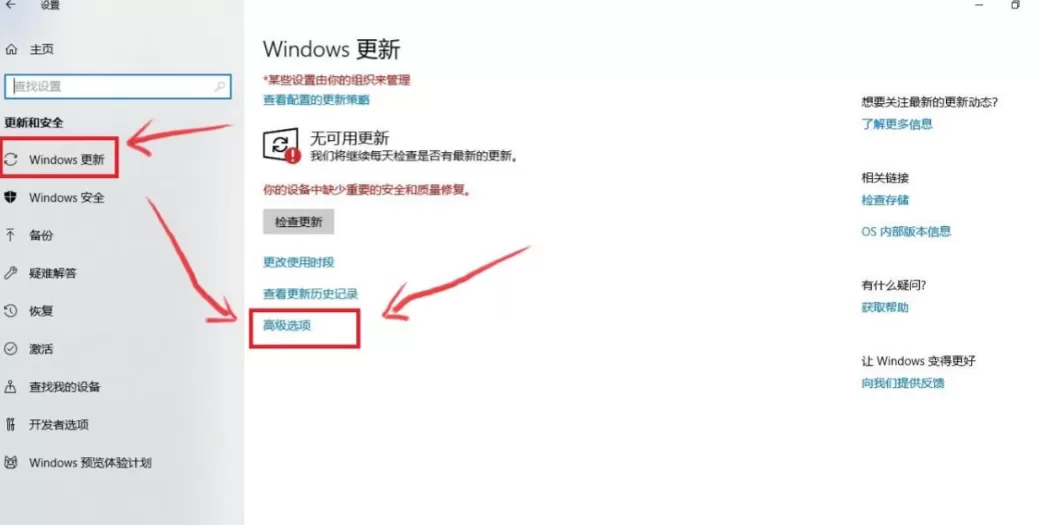
Cleaning the c drive is not a matter of once and for all, and routine maintenance is required to avoid a recurrence of the c drive。
First, open windows' own "store perception" feature. In the storage of the set-up system, open the storage senses, set up the autocleaning of temporary files, wastebins, download folders, and the system automatically cleans the garbage regularly without manual operation。
Second, the installation software will always modify the installation path to d, e, and do not default on the next installation to c。
Third, large files, installation packages, video materials, not desktops and documents, sorting to other disks, and only a shortcut to the desktop。
Fourth, the basic disk clean-up is done once a month, and every quarter deep clean-up is done so that the custom of regular clean-up is not suddenly red。
Fifth, there is regular clean-up of unused files received by qq, chat files are transferred to other disks in a timely manner to avoid long-term accumulation of occupied space。
Ix. How to clean up the computer c-summary
Summary of priority c-cleaning steps
In sum, the correct logic for cleaning up the c drive is to clean up system garbage safely, then clean up software caches, then transfer personal files and software, and eventually optimize the system setting, so that newers can release large amounts of space at zero risk, depending on the order of simplicity to complexity and from safety to progress。
The most basic system disk clean-up, the deletion of temporary files, the clean-up of chat software caches would address 80 per cent of the space deficit; the step could close dormant files, clean up system components, transfer user folders and release space from the root causes; and ultimately, maintain enough space on c discs for the long term through daily maintenance and storage of perceptions。
The core principles are to be kept in mind throughout the process: unacknowledged files are to be removed, system folders are to be kept intact, official tools are to be given priority, and undefined scripts are to be cleared in a safe and efficient manner, so that the computer can be cleared of the c-discreet, and the problem of space is to be addressed, so that the computer can be back on stream。