

Log in to my dhgate -- product -- freight template management -- freight template, and enter the freight template management page。
If you are a new seller and no shipping template has been set up, you will see the guidance on the following page:
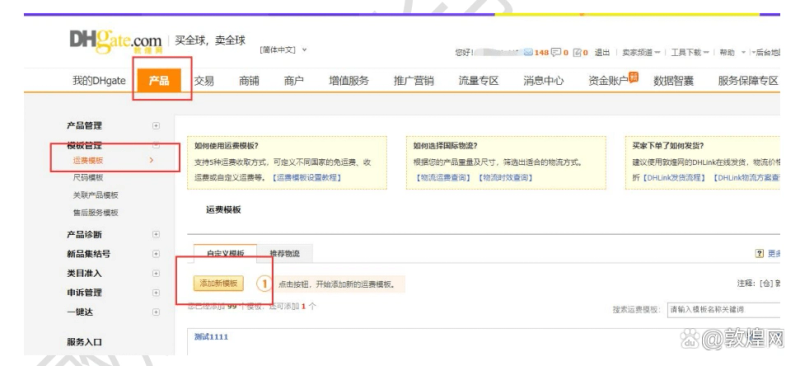
Add a new template
Please log in to add a new template to my dhgate -- product -- freight template management -- and add a new template page as follows:
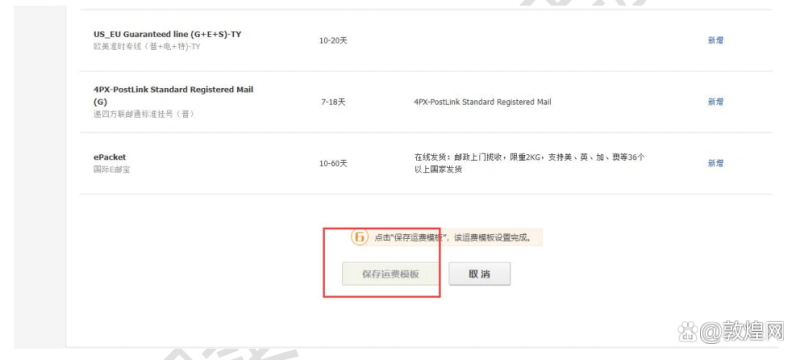
Adds a new shipping template page, figure 12 is a mandatory entry, and the " save and add " button is filled out to change to a clickable state to save the new shipping template。
3. Installation freight
Adds a new template page, clicks the " select and set " link, and enters the set shipping page。
1. If you set logistics that contains standard freight streams, the following freight packages are shown:
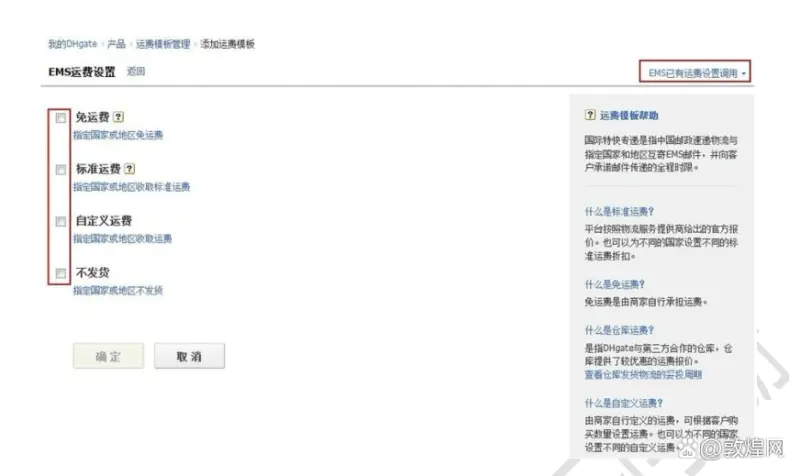
For the distribution countries of this logistics, you can set freight costs as “free transport, standard freight, self-defined freight, non-delivery” and require that only one type of freight be set up in a country。
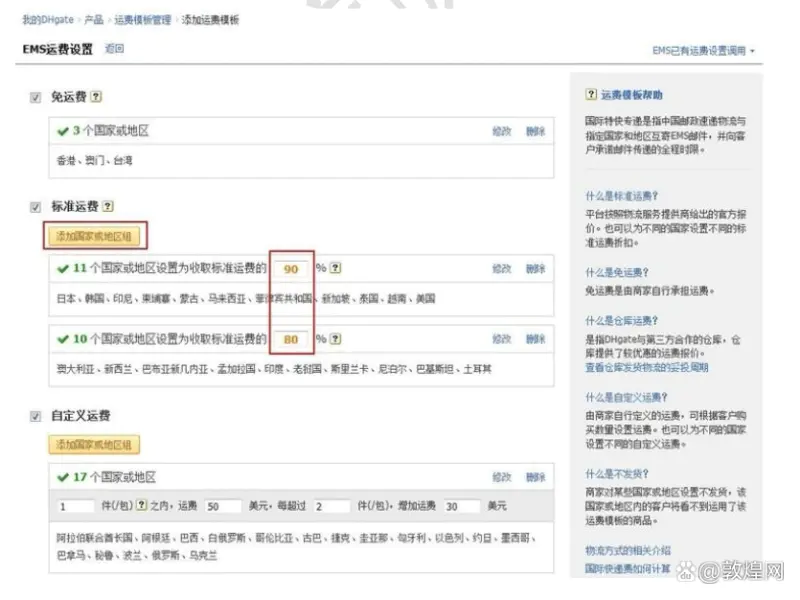
Standard freight discount set-up: different standard freight discounts are supported in different countries, as follows:
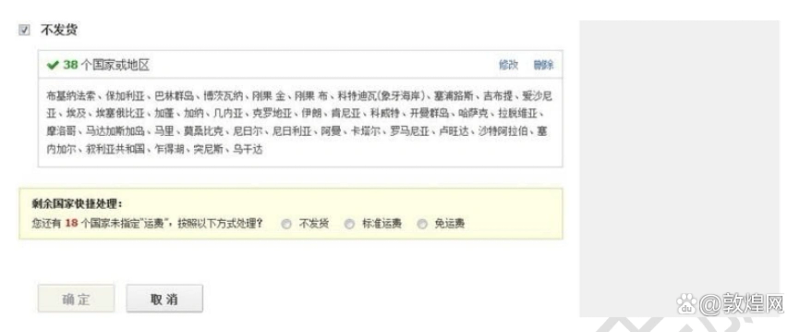
The remaining country will be processed quickly: you can select a freight type to process all of the remaining unprocessed countries。
2. If the logistics you set up contains the freight charges for the warehouse, the following freight provisions are shown:
For the distribution countries of this logistics, you can set freight costs as “free transport, standard freight, self-defined freight, non-delivery” and require that only one type of freight be set up in a country。
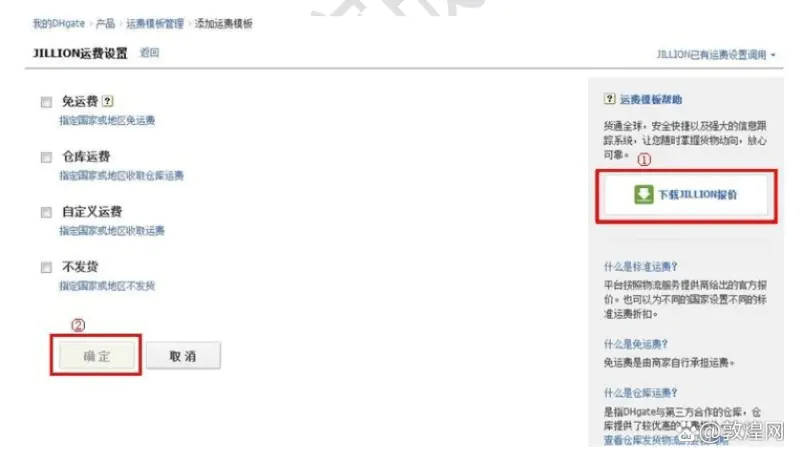
Figure 1: only downloads of quotations containing [storage freight] in logistics mode are supported, and standard freight quotations are available through the official network
2 only the distribution countries of the logistics will be able to establish that the buttons become more effective by setting all the freight types
4. Freight on product editing pages
Check in on "my dhgate - product - management - management products - upboard " , click on "adding new products" to the new product page to show the fifth set of freight charges, select the freight template to be used in the "selecting freight template" option, and display the details of the freight template in the system as follows:
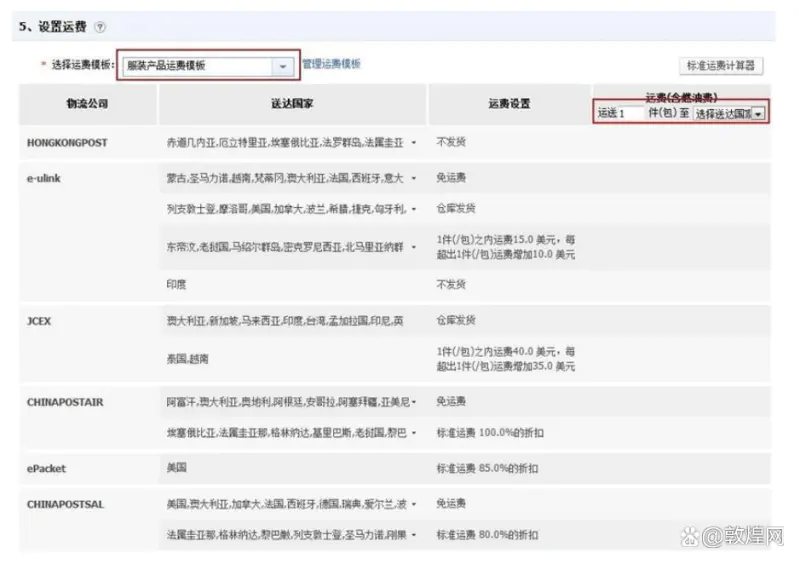
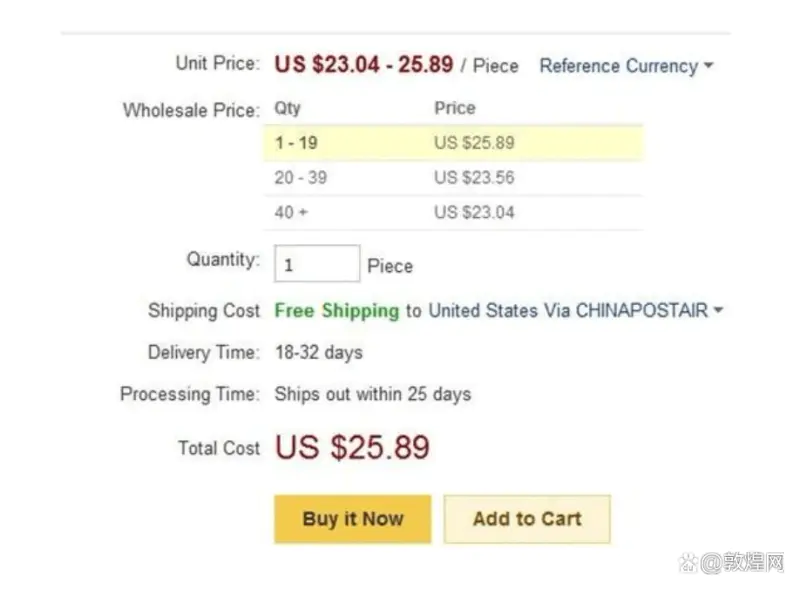
5. Final page freight on product
Product final page showing the calculation of freight costs for commodities for which a freight template has been set up, as follows:
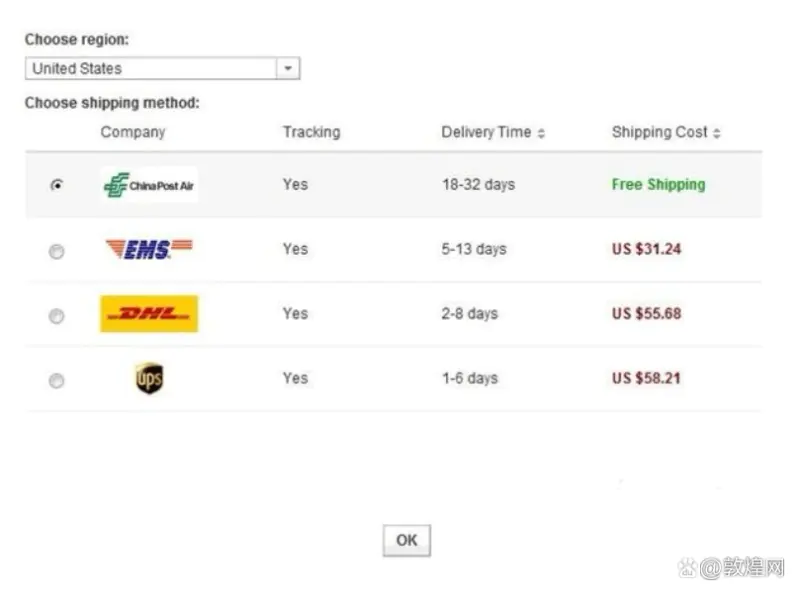
Clicking on the icon in the shifting costa line to pop up the page showing the transport costs and details of the distribution time frame
As shown:
Type of freight:
Standard freight costs:
1 what is standard freight
The platform is based on an official offer from a logistics service provider. Different standard freight discounts could also be set for different countries。
Standard freight and discount settings
By adding a new template page, click select and set to enter the freight settings page, standard freight and discount settings operator
The act reads as follows:
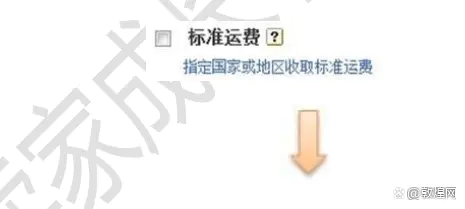
Click on the standard freight box or the link “standard freight for the designated country or area”, and when the platform pops up the page to tick the standard freight “country or area”, fill in a freight discount for the selected country, and then save it and return to the shipping settings page。
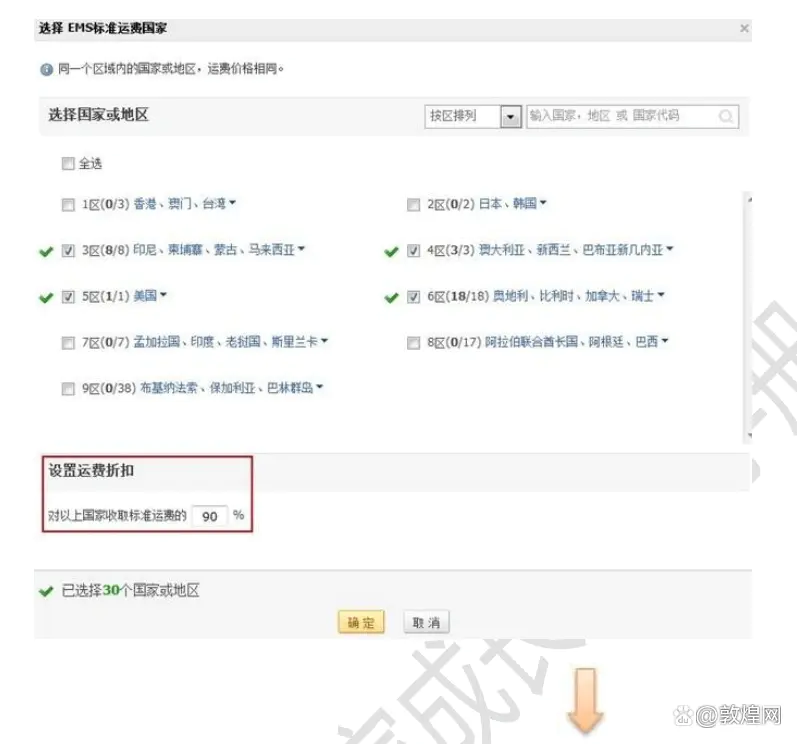
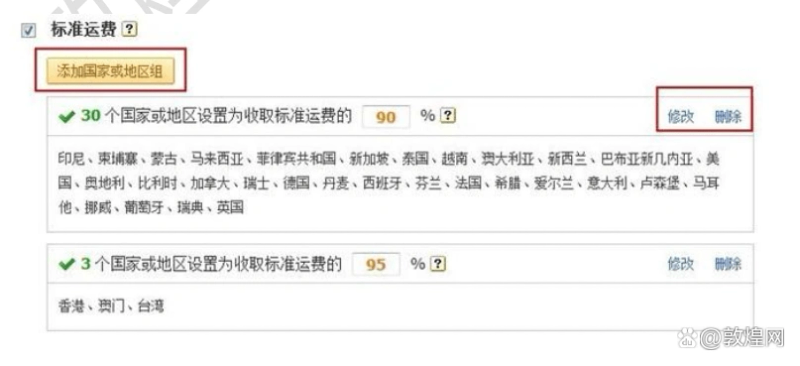
Page shows the country and discount settings after the standard freight costs have been successfully saved. The standard freight settings are complete and you can continue:
1 click on the add a country or area group button to set multiple discounts
2 click on the " modify " button: amend the country breakdown of standard freight costs and discounts
3 click on the delete button: delete the group of countries and the discount settings
Free of freight:
1. What is exempt from freight
Exemption from freight costs is borne by the business itself。
2. Freight-free settings
By adding a new template page, click " select and set " to enter the freight settings page, which operates with the following:
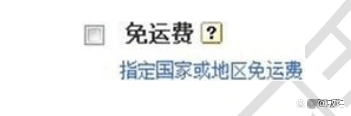
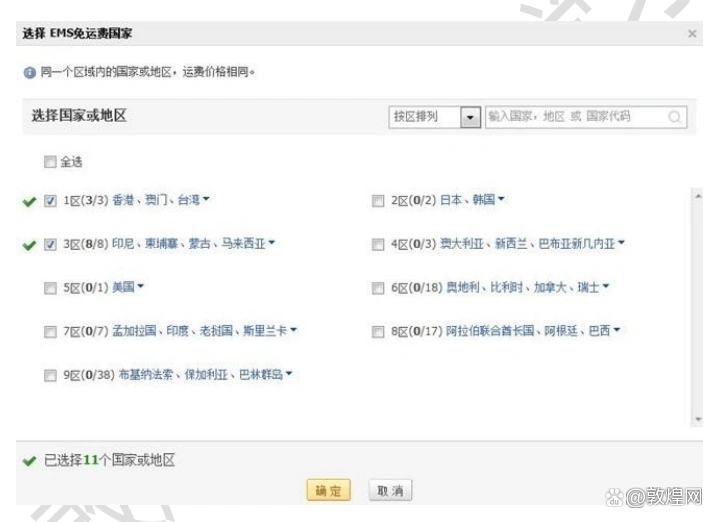
Click a multi-check box free of freight or a link to the “designation of a country or area free of freight”, and the platform pops up。
Tick the “country or area” to be exempt from freight, and then successfully save and return to the freight settings page。
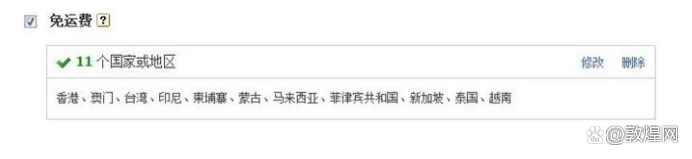
Page displays the country where the free-of-freight setting was successfully saved. The free-of-freight operation set is complete and you can continue:
1 click on the " modified " button: modify the details and discounts of the countries exempt from freight
2 click the delete button: delete the settings of the group of countries
Custom freight:
1 what is a customised freight charge
Freight, as defined by the business itself, may be set up on the basis of the amount purchased by the customer. You can also set up different countries
Definition of freight。
2. Customised freight settings
Click on the custom freight box or the link "designation of countries or areas to collect freight", platform popup page noodles
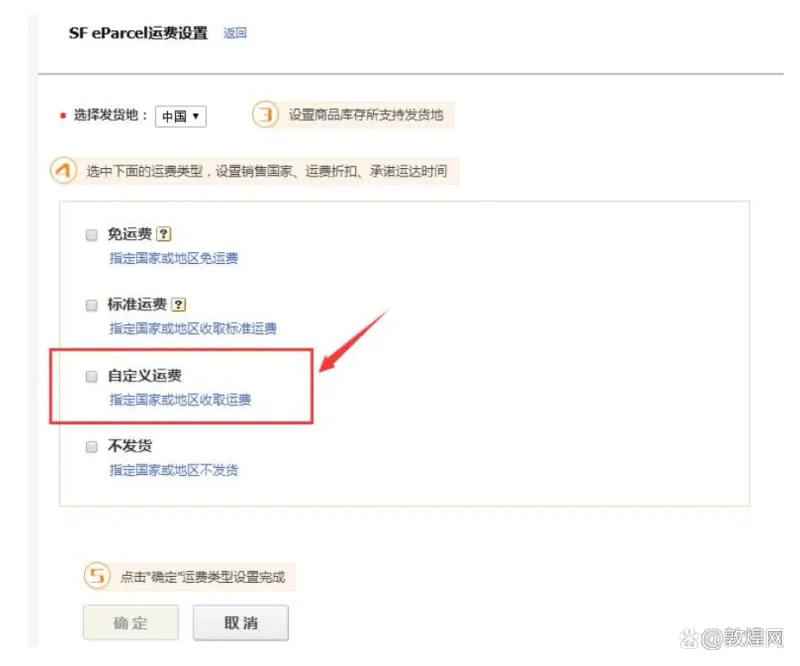
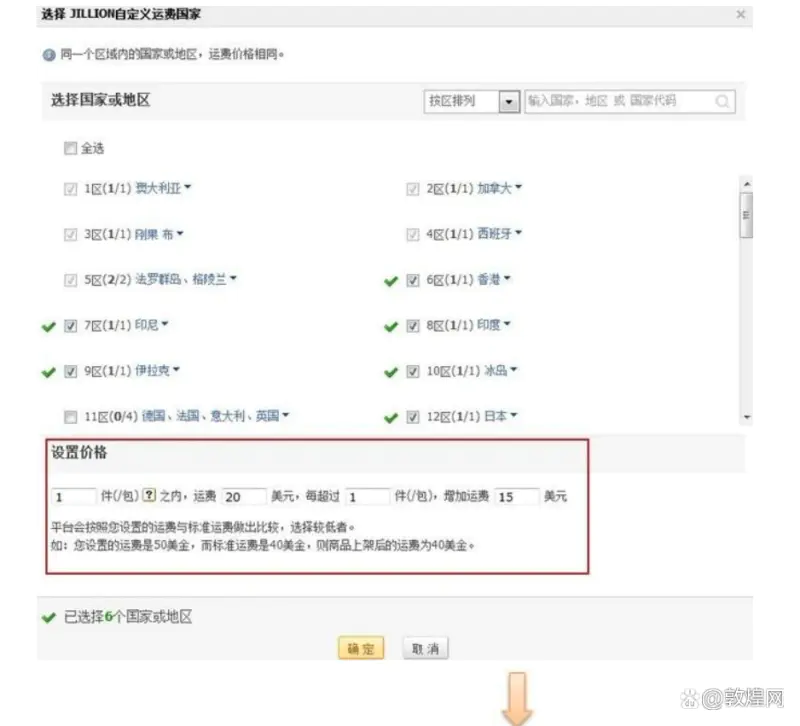
After selecting the “country or area” for the defined freight, fill in the purchase quantity and freight amount for the selected country
Always saves and returns to the shipping settings page。
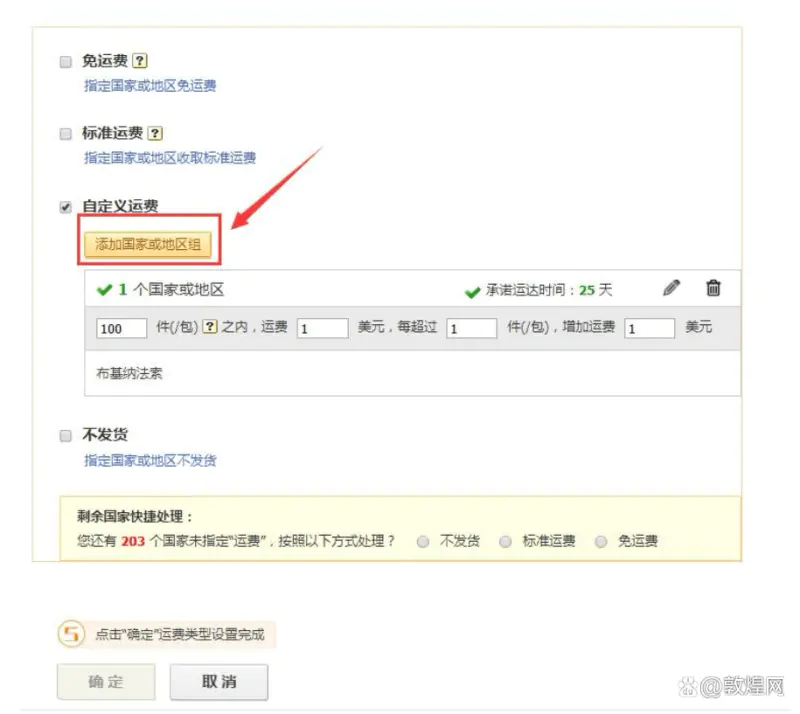
Page shows the country where the freight charges were successfully saved and the setting of the freight amounts, the custom shipping settings are complete and you can continue
Repetition of “adding countries or areas” to set different freight rates for multiple groups of countries or areas
Warehouse freight
1. What warehouse freight
Warehouse freight is the warehouse in which dhgate worked with a third party, which provided a more favourable freight offer。
2. Warehouse freight settings
By adding a new template page and clicking select and set to enter the freight settings page, the warehouse freight settings operate as follows:
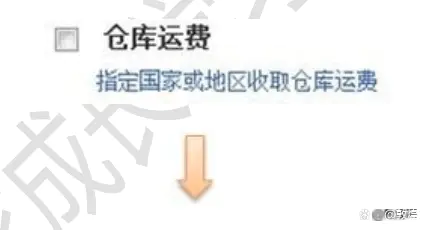
Click on the multi-check box set by the repository or the link "designation of national or regional warehouses " , platform popup page noodles
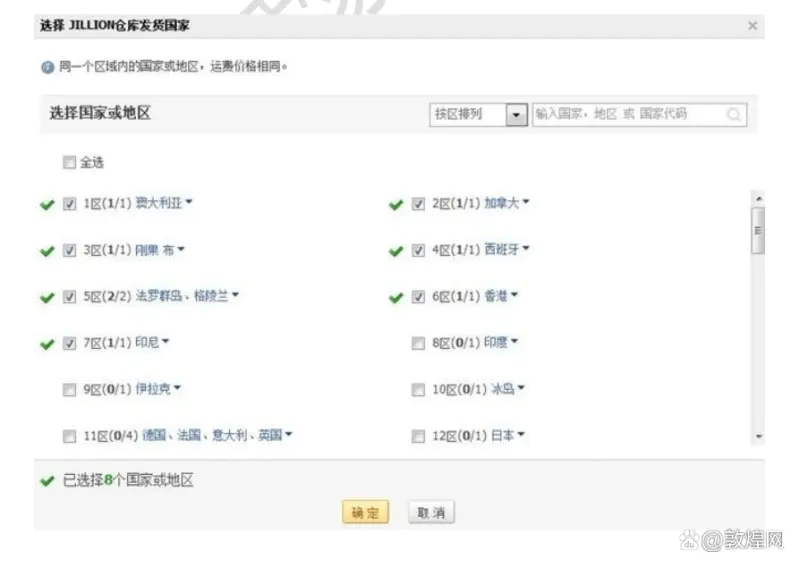
Check the “country or area” of the freight at the warehouse and save it and return to the shipping settings。
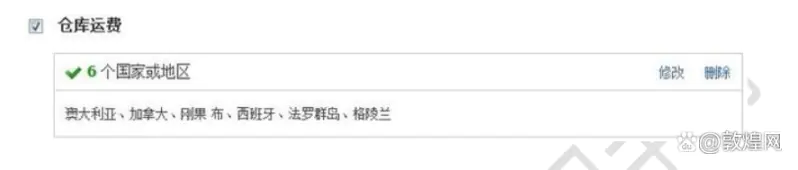
Page shows the country where the warehouse freight setup was successfully saved. The warehouse freight setup is complete and you can continue:
1 click on the " modify " button: modify the national breakdown of warehouse freight
2 click the delete button: delete the settings of the group of countries
No shipment
1. What's not to deliver
Businesses do not ship to certain countries or areas, and customers in that country or area will not see the use of the freight template business
Psst. Qualitative analysis of logistics modalities
2. Non-shipment settings
Setup method in non-consigning countries by adding a new template page, clicking select and set to enter the freight settings page
As follows:
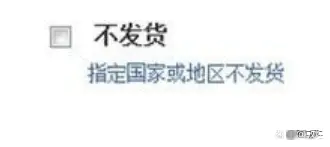
Click on the non-deportation multi-check box or the link "designate country or area not to deliver " , platform popup page noodles
Checks the “country or area” that does not deliver the goods, and then successfully saves and returns to the shipping settings page。
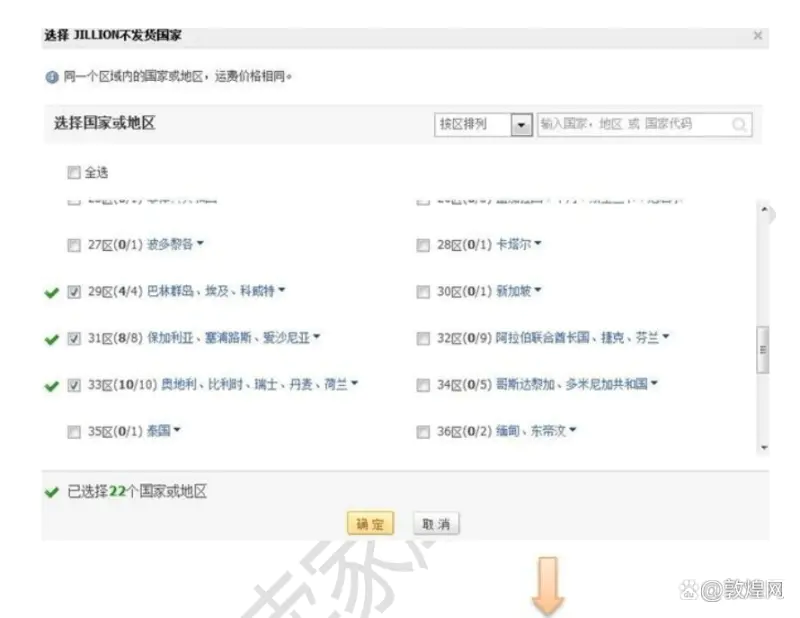
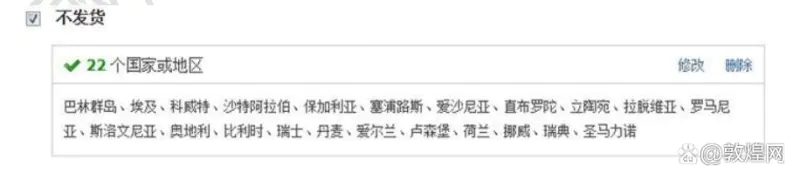
Page displays the country where the non-deportation setting was successfully saved, the country where the non-deportation was completed and you can continue:
1 click on the modify button: modify the country breakdown for non-delivery
2 click the delete button: delete the settings of the group of countries
Editor: wang quan
Output: deutscheung network business